
Photograph a website — or sketch one on paper — paste the picture in, and Gemini Vision reads the layout and writes a React component. No Figma, no PSD. I photographed a website. It built itself.
What it does
The Screenshot-to-Code Agent turns a picture of a website into working code. Take a photo or a screenshot — or even a sketch — paste it in, and Gemini Vision reads the layout and writes a React component that looks like it. No Figma, no PSD, no starting from a blank file.
What it made
I tested it on a simple login card: a centred white card, about 360px wide, with “Welcome back” in navy bold, “Sign in to continue” in grey, Email and Password inputs, an orange full-width “Sign in” button, and a “Forgot password?” link underneath. Here is the component it wrote:
export default function LoginCard() {
  return (
    <div className="page">
      <div className="card">
        <h1>Welcome back</h1>
        <p>Sign in to continue</p>
        <label>Email</label>
        <input type="email" placeholder="[email protected]" />
        <label>Password</label>
        <input type="password" placeholder="Your password" />
        <button>Sign in</button>
        <a href="#">Forgot password?</a>
      </div>
    </div>
  );
}
It rendered first try: the button was orange, the card was centred. It was not pixel-perfect — the heading was 2px too big, the card was 12px too wide, and it invented a placeholder. But it gets you to 90% in 30 seconds.
How it works
- Upload a PNG or JPG, or a phone photo, to the Python backend.
- Gemini Vision reads it with a strict prompt: describe the layout first, then write the code.
- The backend cleans the code, stripping markdown fences and chat.
- The Gradio UI shows the code and a live preview.
That is one Gemini request per screenshot.
Upload a screenshot
  -> Gemini Vision reads the layout
  -> backend cleans the code
  -> Gradio shows code + live preview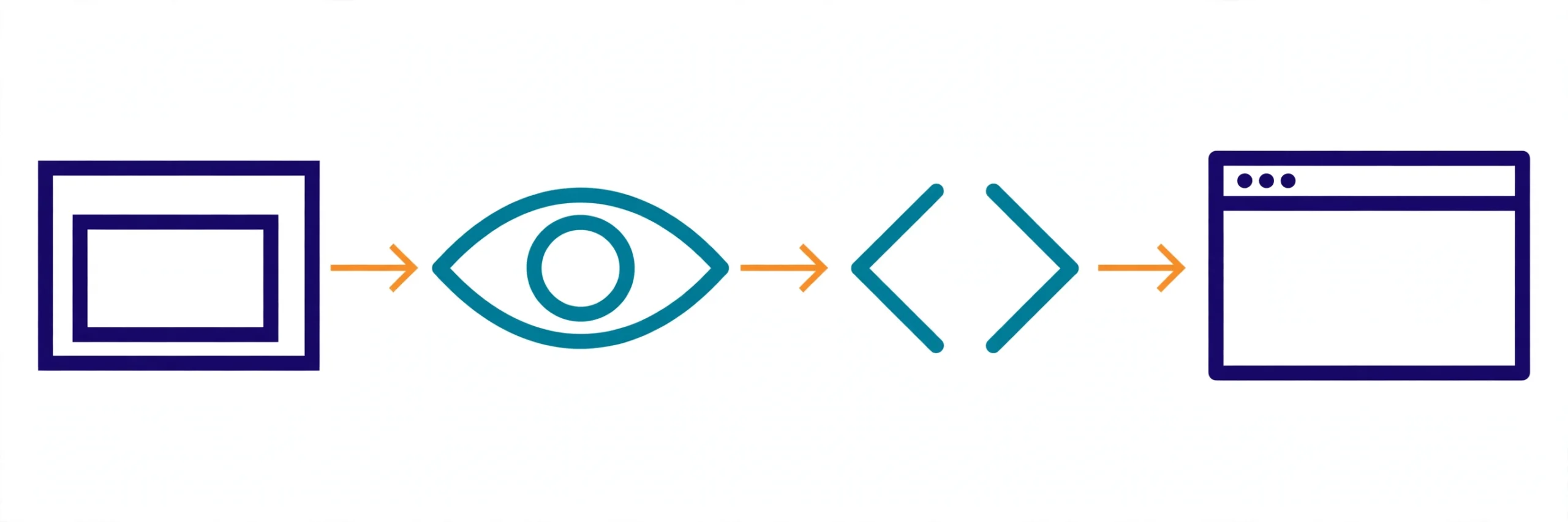
How close is close?
match = boxes in the right place / boxes in the screenshot
Login card: 5 boxes, 5/5 = 1.0 = 100% layout
Details: 3/4 = 0.75, heading size wrong
Layout first, details second.
Change the prompt if the score is low:
"Use the exact text in the screenshot"
"Use Tailwind classes only"
The login card scored 5 out of 5 boxes in the right place — 100% on layout. The details scored 3 out of 4, because the heading size was wrong. Layout first, details second: if a layout score comes back low, change the prompt before you change anything else.
What you need
- Python 3.12
- A Gemini API key — free, no card
- A screenshot — start simple
- A Hugging Face account — only for the live demo
- Vercel — only for hosting the output
- No OpenAI key
Build it
- Get a Gemini key from aistudio.google.com and put it in
.envas GEMINI_API_KEY. - Run it on your computer:
cp .env.example .env
pip install -r requirements.txt
python app.py
Open http://127.0.0.1:7860, upload a screenshot, press Generate, and wait about 20 seconds.
- Or use the command line:
python main.py screenshot.png --out LoginCard.jsx- Go live, free: push the project to a Hugging Face Space with the Gradio SDK and Python 3.12, and add GEMINI_API_KEY as a Space secret. Host the React output on Vercel with
npx create-next-app.
The code
screenshot-to-code/
├── main.py
├── app.py
├── requirements.txt
├── .env.example
├── example_screenshot.md
└── example_output.jsx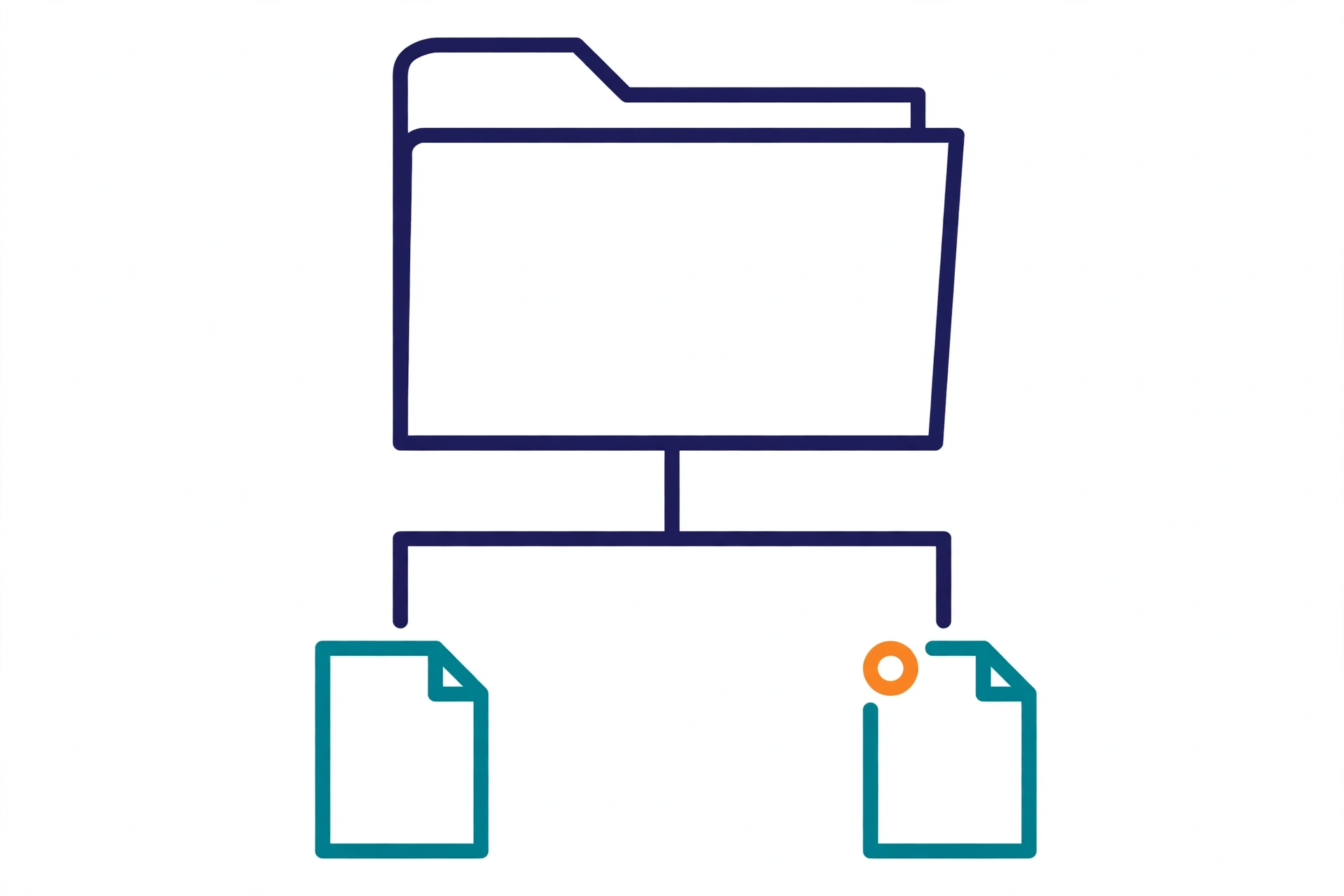
main.py sends the screenshot to Gemini Vision with a strict prompt, cleans the reply, and writes the component to a file:
import argparse
import os
import re

import google.generativeai as genai

PROMPT = (
    "Look at this UI screenshot and write a single React component. "
    "Use Tailwind classes only. Use the exact text in the screenshot. "
    "Return only code, no explanation, no markdown fences."
)


def clean_code(text):
    text = re.sub(r"^```[a-z]*\n?", "", text.strip())
    text = re.sub(r"\n?```$", "", text)
    return text.strip()


def generate_component(image_path, model="gemini-2.5-flash"):
    genai.configure(api_key=os.environ["GEMINI_API_KEY"])
    vision = genai.GenerativeModel(model)
    with open(image_path, "rb") as image_file:
        image = {"mime_type": "image/png", "data": image_file.read()}
    response = vision.generate_content([PROMPT, image])
    return clean_code(response.text)


if __name__ == "__main__":
    parser = argparse.ArgumentParser()
    parser.add_argument("image")
    parser.add_argument("--out", default="LoginCard.jsx")
    parser.add_argument("--model", default="gemini-2.5-flash")
    args = parser.parse_args()
    code = generate_component(args.image, args.model)
    with open(args.out, "w") as out_file:
        out_file.write(code)
    print(f"Wrote {args.out}")
app.py is the thin Gradio app: it calls the same generate_component function and shows the code next to a live preview.
What broke
- Gemini wrote chat, not code. Fix:
clean_codestrips the fences and the chat. - It invented text. The output said “Welcome to Acme Corp”. Fix: “Use the exact text in the screenshot” in the prompt.
- A wonky phone photo with glare put the button in the wrong place. Fix: use a straight screenshot, or crop tight.
Download the project
Unzip it, copy .env.example to .env, fill in your Gemini key, run python app.py, and photograph a website.